From 12v to 24v

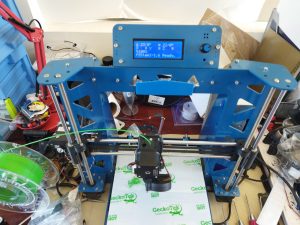
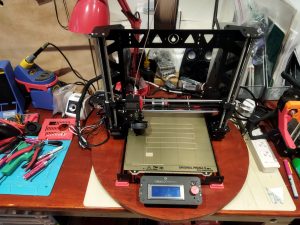
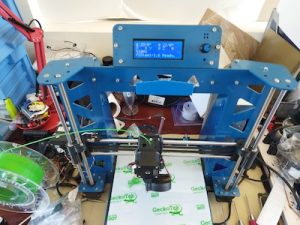
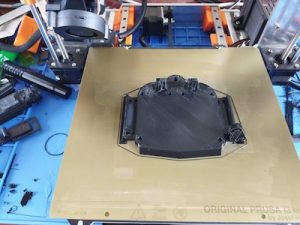
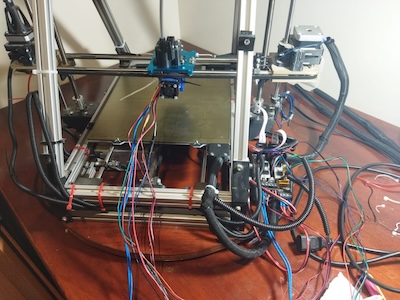
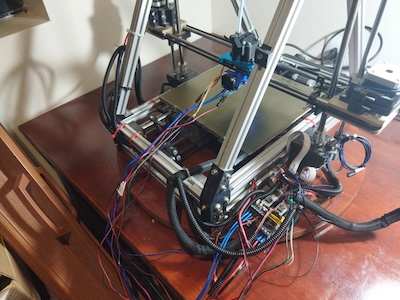
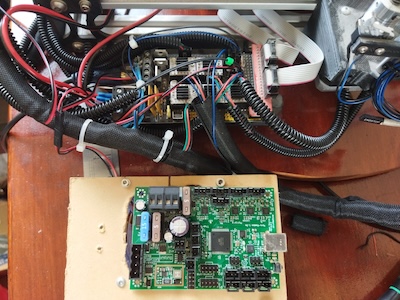
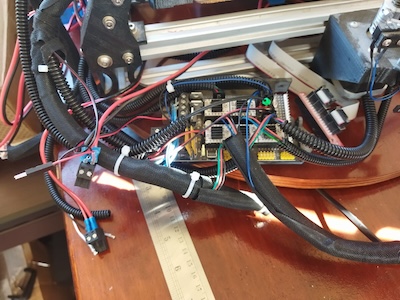
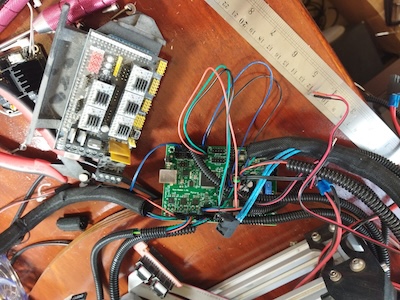
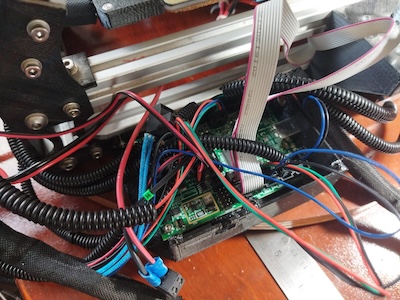
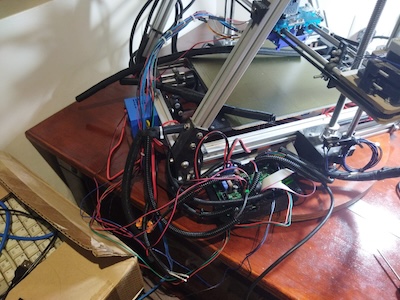
Sometimes you need to pivot when things aren’t going as planned.  The original P3Steel had a 12v system which only allowed the heatbed to reach a temperature of 60°C for PLA, but not high enough for filaments like PETG.  I  made the command decision that the P3Steel needed to be scrapped with some of its parts being donated to a new build.  Essentially another P3Steel build but running on 24v instead of 12v.  It is a P3Steel but with an Orballo black frame.  Very similar to the P3Steel with the blue frame, but this frame will accept a larger heatbed that fits the Prusa MK2 and MK3 series printers.   The heatbed on the new build is actually wider, but you can’t tell from the two pictures.

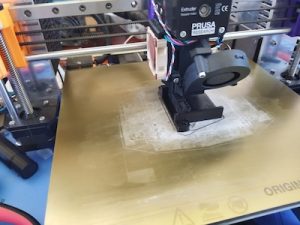
This system is essentially a Prusa MK2.5S with a Mini Rambo 1.3a running the latest Prusa firmware 3.14.2 (as of this date).  The difference is that it will be using a 24v heatbed and a 24v hotend.  But it is using two 5v fans like the MK3S does.  Plus I added a E3D Revo V6 hotend  just like I did for the MK3S.  I will be able to swap out the hotend very quickly.  I was able run through most of the builtin Prusa tests, but failed in a few.  That is due to the frame not being the same exact size as the MK2.5S frame so the Y was a little bit off and as was the Z.  But all the movements are correct and it printed a nice first layer test.  I have no trouble getting the heat bed to 70°C or higher.  Looking forward to fully integrate this printer into the lineup.


Anycubic Kobra 3 Max Combo

Just received the Anycubic Ace Pro that I ordered from Amazon.  This along with the Anybcubic Kobra 3 Max will complete the Combo.  They didn’t have the Combo (Kobra 3 Max plus the Ace Pro) available for sale with free shipping at the end of March, so I ordered just the Kobra 3 Max which was on sale and included free shipping.   I ordered the Ace Pro a few weeks after the Kobra 3 Max.  It wasn’t on sale but it still had free shipping.  Now both the Kobra 3 Max and the Ace Pro don’t have free shipping.  And the Kobra 3 Max isn’t on sale.  If I bought both today, it would have cost me $215 more.  That’s a lot of filament there. 😉

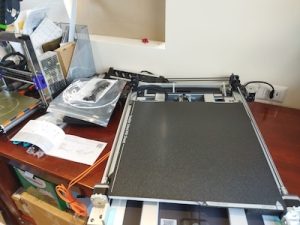
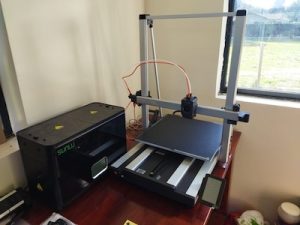
The build volume of the Anycubic Kobra 3 Max is massive.  It measures 420mm x 420mm x 500mm!  It dwarfs the 250mm x 210mm x 220mm build volume of my Prusa Mk3x.  Not really sure the build height of my MK3X is really 220mm.

When I received the Kobra 3 Max, I checked the box for damage.  There wasn’t any noticeable damage, but the box was coming apart on a corner.  It looks like the he shipper applied extra tape to fix that.  Nothing was damaged in the box.  The packaging inside was good.  I had watched a few videos prior to receiving my printer so I knew what had to be done.  I opened the manual and proceeded to follow the directions to assemble the printer.  The printer is not a kit like I have dealt with before.  The Z axis was removed from the base and packed flat on the base.  Not loosely packed but it was bolted together with the base to make one unit.

Following the directions I was able to assemble everything.  From watching some of those YT videos on the Kobra 3 Max, I was able to fix a few issues that other people had.  Mostly it was making sure things were tight.  I did contact Anycubic support for a few issues.  From looking at the manual it seemed that there was something to be set if you were using 220v instead of 110v.  For this printer you just use the appropriate power cable, plug it in, and it automatically senses the current you are using.  The other issue I had was that the feet weren’t level on the table.  My table was a bit off, so I put the printer on a glass surface.  It was still a little bit off.  Anycubic support got back to me and send me a nice instructional email on how to fix the issue.  They also solved an issue I had with not being able to log on to my account at their Makeonline.com site. All in all, Anycubic support was prompt and helpful.  I went thought the various tests, but haven’t attempted to print anything since I was waiting on the arrival of the Ace Pro unit.

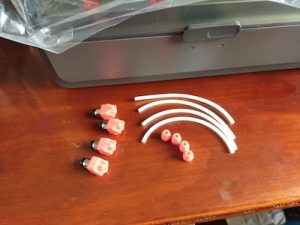
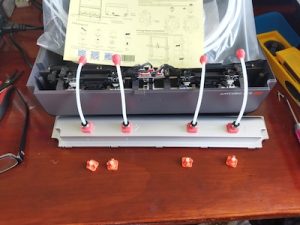
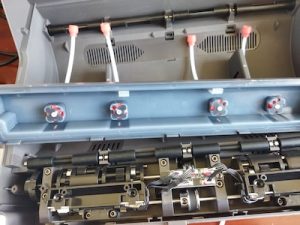
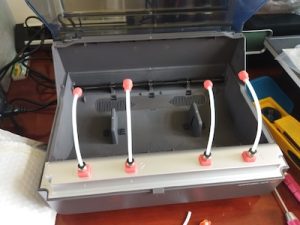
Right now I am printing some parts for a mod of the Ace Pro.  The mod adds a PTFE tube to each of the 4 filament inputs in the Ace Pro.  This mod will eliminate wear to the input pads due to friction caused by the filament rubbing on the pad.  This will also help insure that the filament feeds into the Ace Pro without any kinks or twists that will cause a jam.  For each input on the Ace Pro, two parts will need to be printed.  A new input pad and a guide at the end of the PTFE tube.  Here is a link to the new input pad.    This input pad uses PC4-M10 Pneumatic Fittings.  It was a remix of the original design which uses PC4-M6 Pneumatic Fittings.   I got a set of fittings from Amazon which had both sizes.  The remix pages doesn’t have a guide head STL file since he now thinks that the original guide head is better.  So I had to get it from the original design page.  For the PTFE tubes, the length is 14cm (5.5 inches) long.  I printed out the STL files, cut the PTFE tubes, and installed the PC4-M10 fittings into the replacement inputs.  The tubes need to stick out of the input pads just a little bit like the original, due to the input area inside of the Ace Pro under the cover piece.

It is all ready to go.  Now I have to finish up with the Ace Pro setup and integration with the Kobra 3 Max.


P3Steel Tuning

In a prior post I talked about my 3D Printing Journey.  One thing I talked about was trying to set the E axis steps for the P3Steel because the extruder was having an issue and was clicking while it was feeding the filament.  I have finally got back to tuning the P3Steel.

I thought it would be a good idea to check what were the settings for the Prusa Mk3x.  This should give me a good baseline since I am using the same z stepper motors and the other stepper motors are very similar.  The extruder setup came from parts for an Mk3 using the Bondtech gears.  By using Pronterface and connecting to the Mk3x, I will be able to use the Marlin M503 command to see what the settings are.  Then I will edit the Marlin files for the P3Steel and set the appropriate values to match.

Issuing the M503 command I can see that the default axis steps per unit values for the Mk3x are Y=100, Y=100,  Z=400, and E=280.  First I did the classic extrusion test where you make a mark 120mm from where the filament goes into the extruder.  You then extrude 100mm of filament.  You next check to see how much was extruded by by checking your mark at 120mm with the point where the filament goes into the extruder.  Ideally the distance should now be 20mm.  If you have less than you are under extruding.  If you have more, then you are over extruding.

Well when I first did the test, that 120mm mark disappeared into the extruder and filament kept feeding into it for a while.  So I then marked off 3 segments of 100mm each and ran the test again.  Well, two of those marks disappeared into the extruder.  I was able to see how much was extruded.

I edited the Marlin Configuration.h file to make a change to the E value for the default axis steps per unit.  I compiled the firmware and loaded it to the P3Steel.  Each time I make a change to the firmware, I change the output name of the printer (“P3Steel-1.8”).  That way I not it has changed.  When I ran the test again, the same thing happened.  A lot more than 100mm of filament was pulled in.  On the printer you can check the configuration settings.  The value that I thought I changed was the same.

The settings for the P3Steel were Y=100, Y=100,  Z=400, and E=1900.  The value for the E value wasn’t 280 like I had set it to.  A little bit of head scratching here.  What happened I thought.  Well the magic of EEPROM happened.  Even though the name changed, the changes I made were now part of the default settings and not the current settings.  So in the LCD menu for the printer, I loaded the default settings and my change was there.  I then saved the settings to the EEPROM to make sure they would stay there.  I marked 120mm on the filament and ran the test again by feeding 100mm in to the extruder.  I measured what was left and it was 20mm.  So it was a success.

Quick note here.  In my prior post when I was trying to work on the extruder clicking issue, I had changed the E value to 575.  It seemed to have helped, but I did not run an extrusion test, nor did I check the axis steps value for the E.  More than likely it was still 1900.

In tuning a 3D printer, in addition to the E step calibration, there are a number of other things that should be looked at.  Updating your firmware can help issues with know problems.  So check with the kit supplier (Prusa, etc.) or with the project that produces your firmware (Marlin, Klipper, etc.).

Check the mechanical components of your 3D printer.  Make sure all the fasteners are tight.  The belts should be tight (but not too tight).  The pulleys for your belts shouldn’t move on the motor shafts (check and tighten the set screw).  If you have wheels on your 3D printer, make sure they are properly tightened to prevent wobble and wear.  Regular lubrication is needed on any of your lead screws, guide rods, or other bearings to keep the parts moving without friction.  SuperLube synthetic grease is good for this.

Print shifts to the left or right can be caused by a loose belt or a broken pulley or a free spinning pulley on the X axis.   Print shifts to the front or rear can be caused by the same issues but on the Y axis.  I had an issue once on a print where on the last few layers, the print shifted to the left right a bit.  I was able to use the print ok, but the guide pulley on the X axis broke which caused the shift.  Sticking leads screws or friction on the guide rods can cause layer issues due to the Z not moving smoothly.

The stepper motors of the 3D printer can cause EMI or RFI interference issues.  I seem to be having that with the output on the LCD screen for my P3Steel.  The cables aren’t shielded at all.  One possible solution is to get some snap on ferrite filter cores for the LCD cables.


Soldering Temperatures

What’s the correct temperature to set your soldering station to?  I am trying to figure out what temperature presets should I use on my Hakko FX-888D.  I can have up to 5 presets.

According to Collin’s Lab Notes, the short answer is for leaded solder to set your iron to 650°F/350°C.  And for lead-free solder to set your iron to 750°F/400°C.  The long answer is that it depends on two different variables, tip size and joint size.  A larger tip is better at transferring heat, so you can use lower temperatures.  A smaller tip transfers less heat so you need more heat.  On the other side of the equation, a larger joint needs more heat so a higher temperature setting is desirable.  A smaller joint heats up faster and it needs less heat, so a lower temperature setting should be used.  Keep in mind that higher temperatures affect the life of your soldering iron tips.  So when in doubt, use a lower temperature and increase the temperature when needed.

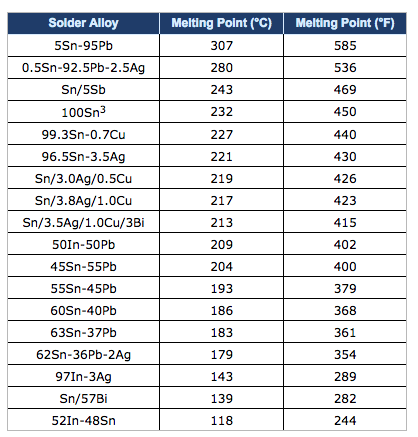
The HAKKO Knowldege Base also provided good information on the different optimal soldering temperatures for leaded solder and lead-free solder.  While I am providing the information for the link, I am going to present the information here from the knowledge base.  But in a nutshell, the optimal temperature setting should be high enough to achieve a soldering connection at 50°C above the melting point of the solder, while also adding in more heat (70°C to 100°C) for a heat reserve for quick thermal recovery of the tip after a connection is made.  This recovery range factors in the performance of the soldering station and type of solder used.  Here is a chart for reference on the melting points of various solders.

As a general rule of thumb, the optimal soldering temperature should be high enough so that when making a solder connection, the solder is approximately 50°C above its melting point.  The set temperature for a soldering station should be an additional 70°C to 100°C higher to provide a heat reserve for the quick thermal recovery of the tip after the solder connection is made.  The performance of the soldering station used and the type of solder used will determine the optimal soldering temperature.

For example, lets look at the melting points of common solders:

  • Tin/Lead (Sn63/Pb37) – 183°C
  • SAC 305 (Sn/Ag3.0/Cu0.5) – 220°C
  • SN100 (Sn) – 232°C

Now let’s add the 50°C we need for making a good soldering connection:

  • Tin/Lead: 183°C + 50°C = 233°C
  • SAC 305: 220°C + 50°C = 270°C
  • SN100: 232°C + 50°C = 282°C

We now need to consider the type of soldering station we are using.  If we are using a Hakko 936 Soldering Station which has very good performance, we should add approximately 100°C as the heat reserve for quick thermal recovery.  The resulting temperature settings are:

  • Tin/Lead: 233°C + 100°C = 333°C
  • SAC 305: 270°C + 100°C = 370°C
  • SN100:  282°C + 100°C = 382°C

As you can see, switching from tin/lead solder to lead-free solder requires a higher optimal temperature setting.  But before you raise your set temperature, you must consider the setting you are currently using, and the performance of the soldering station.  Most Hakko soldering stations are typically set at about 399°C (750°F).  Considering that, the optimal temperature setting does not need to be adjusted when changing from tin/lead solder to lead free solder.

Now let’s look at the optimal temperature settings if we were using a high performace soldering station such as the Hakko FX-951 Soldering Station.  Because of the performance of this soldering station and the thermal recovery performance of the composite tips, we only need to add 70°C as the heat reserve for quick thermal recovery.  The resulting temperature settings are:

  • Tin/Lead: 233°C + 70°C = 303°C
  • SAC 305: 270°C + 70°C = 340°C
  • SN100: 282°C + 70°C = 352°C

Again, considering that most Hakko soldering stations are typically set at about 399°C (750°F), we do not need to raise the set temperature.  In fact, we can use a lower set temperature which will help extend the service life of the soldering iron tip and reduces the risk of damage to the PCB and components.

That wraps up this post.

Hakko FX-888D Setup

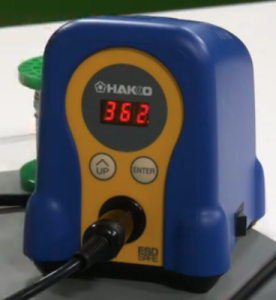
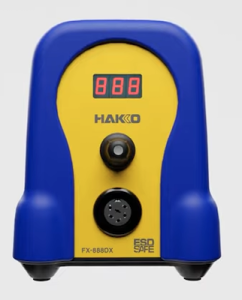
Recently i noticed that Hakko has released a new version of their FX-888D soldering station.  The new model is the FX-888DX.  The main difference I can see is the addition of single adjustment knob which replaces the two adjustments buttons that the FX-888D had.

The new model can also use an optional 95w iron for more demanding soldering work.

I have the FX-888D and it is good soldering station.  It is 65w and has a temperature range of 120°F to 899°F (50°C to 480°C).  The time to reach 660°F (349°C) is 26 seconds.  A good soldering station.

I will go through the setup of the FX-888D in order to document the process.  There are a four parameters that you can change in the setup .  You can choose either Celsius or Fahrenheit as the display temperature.  You can set a base temperature so that an alarm will sound if the station doesn’t go pass this value.  You can choose between normal mode or preset mode.  Preset will allow you to set a number of different temperature presets.  And the last thing is setting a password.  This probably could be useful to people.

In order to get into the parameter settings, press and hold the UP button while turning on the FX-888D.  Let the button go when the display lights up.  Next 01 will flash to indicate that you at Preset 01.  Press the Enter button to allow you to set the display temperature scale to either Celsius (C) or Fahrenheit (F).   Pressing the UP button will cycle through C and F.  By pressing the Enter button, you will set your chosen temperature scale.  The 01 will be flashing again.  Press the UP button to go to the next Parameter which is 03.

Parameter 03 is to set a base temperature so that an alarm will sound if the station doesn’t go pass this base value after a certain time.  We can press the Enter button to go into this mode to set the desired value.  Using the UP button and the Enter button will allow us cycle through the digits to set the desired value. Pressing the UP button at the flashing parameter number takes us to the next parameter.

Parameter 11 is next and it allows us to choose between normal mode or preset mode.  Normal mode is 0 and preset is 1.  Normal mode just has one preset temperature wile Preset mode will allow you to set a number of different temperature presets, up to 5.  We don’t each preset temperature value here, we just set the number of presets.

Parameter 14 is next and it is about setting a password.  This probably could be useful, but I am not going to use it and not going to describe it here.

When we are done changing the parameters that we want, we press and hold the Enter button for a second.  A Y will flash on the display.  If we want to save the values, we will press enter again.  If we hadn’t wanted to save the values, when the Y was flashing, we would have pressed the UP button to cycle through to a flashing N.  Then we would have pressed the Enter button to not save the changes.

How to change your set or preset temperatures.  For example if the default set value was 750 and you wanted to set it to 660.  First press and hold the Enter button.  The hundreds digit on the display will begin to flash.  You will use to UP button to cycle through to the digit value you want.   In our example the 7 is flashing and I would press the UP button, scrolling through until the 6 is displaying.  Press the Enter button to move over to the tens digit.  Press the UP button to scroll through to the desired value.  Press the Enter button to move over to the ones digit.  Make a change to this value if needed by using the UP button.  Then press the Enter button to finish.

This will work for if you have a number of presets.  For the presets you will use the UP button to select the various presets, P1, P2, etc. up to P5 if you have 5.  Press the Enter button to set the iron temperature to the preset that you have chosen.  When it heats up to its value, you can do the change as described prior.

From time to time you probably want to dial in or adjust the set temperature on your FX-888D, so that it will be more accurate.  You will need a way to measure the temperature of your tip.  There are tip temperature measurement tools.  Hakko has the SG-100B.  With the iron on and it is at its set temperature, measure the tip temperature with the tool.  Once you do that, you will press and hold the UP button on the FX-888D to get into adjustment mode.  Then you set the value to the temperature that you measured with the tip temperature measurement tool.  The UP button will cycle through the digits.  The Enter button will take you to the next digit and will also exit when you are at the 1s digit.

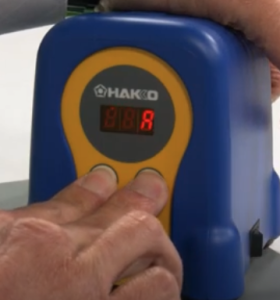
If for some reason, you made mistakes when you made your changes, you might want to do a factory reset. Here is how to do a factory reset on your FX-888D.  When the power is off, press and hold both the UP and Enter buttons.  Turn on the power.  When the power comes on your will get a flashing A which means Asia.

Press the UP button one time to get a flashing U which means US.  Press the Enter button to choose this selection.  The FX-888D has been reset to its factory settings.

Here are the video links where I got my information from.  There is no guarantee that any video that I link to will be available later, so I tried my best to document the information.

FX-888D Setting and Adjustments document.

Here is a very short video by Hakko on the parameter settings on your Hakko FX-888D.

Here is another video where we are shown how to set the different parameters.

Here is the video by Hakko where I got the information on changing vs adjusting the soldering temperature.

Here is a video by Hakko on setting the Preset Temperatures.

Here is a short video by Hakko on setting the Temperature on your FX-888D.

Here is a short video by Hakko on using the Adjust mode.

How To Set and Use the Password Lockout Feature on your FX-888D.

My 3D Printing Journey

My 3D printing journey has been a long one.  I am certainly no expert, but I have learned a lot.  A lot of the info is from my favorite Youtube 3D printing channels while the reset has been on various forums and internet searches.

My first 3D printer was the MendelFlex, which I have talked about in this blog.  I had some success with it, but ultimately I dismantled it for parts.  My second 3D printer was a P3Steel.  I got the 3mm steel frame cut using the design files from the Thingiverse P3Stee design named the “Leonardo” .  I modified the original DXF files and added a mount for the 2004 LCD display which came from another P3Steel design.  The build turned out pretty well.  I am in the process of getting it working.  I need to finish calibrating the axis steps.  The setting of 1900 I had for the E step was much too high.  It caused the extruder to click while I was testing the filament feeding.  I set it to 575 and the clicking stopped.  But I will have to fine tune it.  Here are the youtube videos that describe the tuning process.  It is in two parts.  Here is part 1 and here is part 2.

My third 3D printer is my Prusa Mk3x.  Since most of the parts originally came from Prusa sans the frame pieces, have designated it to be Mk3x.  In the firmware it is a Mk3S.  I added modifications to the X axis and Y axis by adding Hiwin linear rails to the printer.  I also added an E3D Revo V6 hotend to facilitate easy nozzle changes.  This modification will eliminate any chance of filament leaking in the heatblock since the nozzle and the throat tube are one piece on the Revo.  I have been getting pretty decent prints.  Not perfect but I have remember to dial in the settings for each filament.  I am printing parts for other printers.  Replication sort of. 🙂

Prusa MK3x Revisted

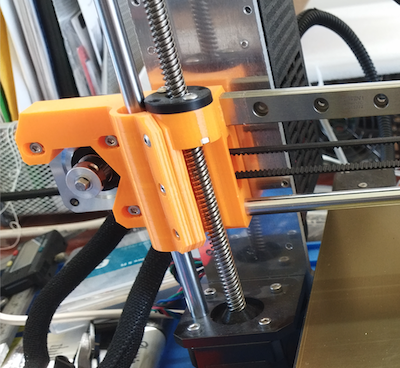
A little while back I upgrade my Prusa MK3x and installed linear rails for the X axis and Y axis.  I also replaced the E3D V6 hot end with an E3D Revo hot end.  While the linear rails came with printed parts, I got a set of the X Axis parts printed in ABS Purple.  But unfortunately the purple stepper motor holder was defective.  So until I receive a replacement, I will have to use the Orange X axis stepper motor holder that came with the linear rail.

Installing the Revo hot end, caused a few issues when trying to run thermal model calibration.  Here is a something about it on Reddit.

The quick fix was to have the Thermal Model Protection disabled.  This is done by connecting the printer to your computer using Pronterface (or Octoprint or Putty) and sending the following commands:
1.  send M310 S0
2. send M500 to save the setting.

The Thermal model protection will remain disabled until after the next restart.

Side note on the Pinda Probe. With the hotend tip on the bed, a distance of 0.8 mm to 1.2 mm between the bed and tip of the probe is a common range. The thickness of a cable tie is the recommended nominal distance.  The PINDA detection range is 2.0 mm, nominal. This allows detection of the bed so that the nozzle is roughly 1 mm above the bed when the PINDA flips state.  You then adjust Live-Z negative to lower the nozzle to the desired height to make a 0.20 mm first layer.

This PINDA height adjustment tool is something to try.  Using the manual’s method with the zip tie I needed live z of -.7 to -.9. I need -.3 or .35 after using this tool.

Get the nozzle just touching the lower pad and then adjust the Pinda to touch the upper one.


MendelFlex Revisted

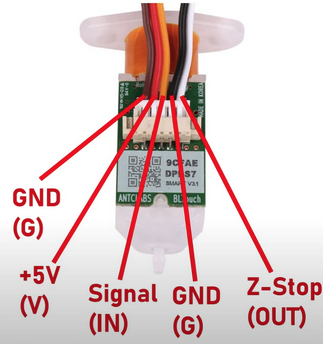
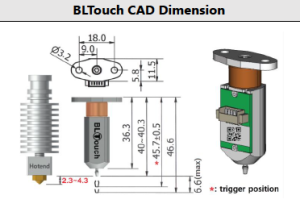
It has been a while since I made a post, so I thought today would be a good day to do so.  I had hoped that there weren’t going to be any more battles with my Mini Rambo install effort on the MendelFlex, but I was wrong.  The next thing that I attempted to accomplish was to get the BLTouch probe working with the Mini Rambo.  Here is a picture of a BLTouch and what the wires are for.

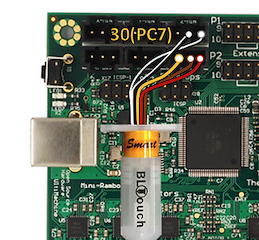
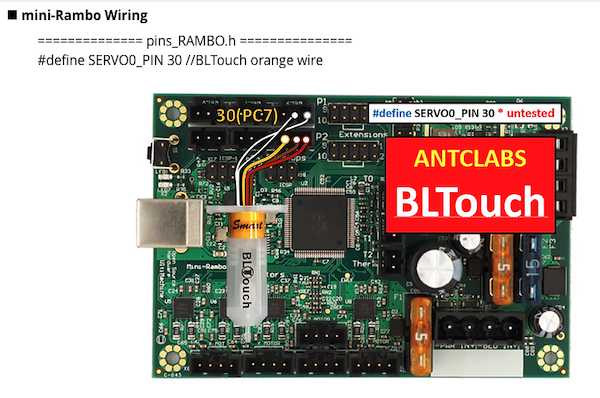
Here is a diagram on how it should be (in theory) attached to the Mini Rambo.

I plugged the BLTouch wires plug into the Mini Rambo Z like shown in the picture above.  I had to switch the brown and red wires in the 3 pin connector because as it was, the wiring in the connector is yellow, red, and brown.  And the connections to the Mini Rambo need yellow, brown, and red.  In the Marlin firmware in the pins_Rambo.h file, I set the servo pin to 30.

#define SERVO0-PIN 30 //BLTouch orange wire

The other wires that I had to check out were the Nozzle/Hotend fan and the print cooling fan.  With the Ramps board I plugged the nozzle/hotend fan into a 12 V connector on the board.  So it ran all the time.  The connectors on Mini Rambo will be controlled by Marlin.

In the Configuration_adv.h file, enable the PROBE_OFFSET_WIZARD to add it to the menu on the printer.

While I was able to get the other components working with the Mini Rambo, I just couldn’t get the BLTouch working with it.  The information available was a bit sketchy.  Plus while trying to extrude some ABS during testing, the nozzle got clogged.  So I just stopped working on the MendelFlex conversion to 24v.

Recently I made up my mind to revert the MendelFlex back to its Ramps 1.4 origins and abandon the 24V effort for a number of reasons.  The Ramps 1.4 12v system worked well enough and the BLTouch probe worked too.  I uninstalled the Mini Rambo and put back the Ramps 1.4 in.  It took me a little bit to make sure the wiring was correct, but I accomplished the task.

While the X and Y homing are working fine, the Z homing needs some work.  I need to calculate the Z offset again and put it in the settings.  The extruder head just kept going and I had to turn off the printer quickly.  The extruder nozzle did not dig into the print bed because on both of the Z sides there is a floating assembly that stops it from doing that.  The  extruder nozzle just sits on the bed.  The solution to this issue was to switch the connections on the on the Z minimum end stop which is used by the BLTouch probe.  My initial wiring seemed to be correct, but there maybe something in the Marlin firmware that is switching the two pins.  But for now I got it to work and not crash into the bed.

In my prior experimentation with trying to get the external Mosfet to work, one of the things I tried was to turn down the power to the heat bed.  I did this in the firmware.  But I never set it back to full power afterwards.  When I tried to heat up the bed it didn’t work.  The led was just pulsing.  That pulsing should have tipped me off.  I tried another heat bed to see if that was the issue.  The same thing happened, no heat and the led was pulsing.  So the heat bed was probably ok.  At that point I remembered I needed to check the Marlin settings for the power to the heat bed.  After I turned turned the power to full, the heat bed  heated up just fine.

There are a number of good YouTube channels that cover the topic of 3D Printing.  The Teaching Tech YouTube Channel  with Michael has the video that I am following  for the information in this post.  The Teaching Tech website has a lot of good information on 3D Printing.  One of its webpages covers the topic of 3D Printer Calibration.  That particular page has some good information.

There is a wizard for helping set the z offset and it is available in Marlin.  If it has not been set, then it needs to be set in the advanced configuration file (Configuration_adv.h) in Marlin.  The setting is called PROBE_OFFSET_WIZARD and the line defining it should be un-commented to set it.  The other setting that we are interested in is called  PROBE_OFFSET_START.  In most cases it can be left at its default value of -4.  You don’t have to un-comment the line for it unless you want to change the value to something other that -4.  There is another setting in the advanced configuration file that will allow for live Z adjustment.  This could come in handy if our initial adjustment with the probe offset wizard needs some fine tuning in real time.  That setting is called BABYSTEP_ZPROBE_OFFSET.  I will make sure it is set too.

Quick note here.  Since I am using a BL Touch probe, I want to mention that the distance between the retracted probe tip and the hotend tip should be between 2.3mm and 4.3mm.  A distance of  3mm would be good.  Manually lower the hotend tip until it is just touching the bed.  A 3mm allen key is useful to measure the distance from the retracted probe tip to the bed.  Adjust the BL Touch probe if need be.

Once you recompile your Marlin Firmware, the wizard will become available in the Marlin Menu on the printer.  It will be located in Advanced Settings –> Probe Offsets –> Z Probe Wizard.  But before starting the wizard it is recommended to manually heat up the extruder nozzle and bed.  For example with PLA, set the nozzle to something not hot enough to melt the filament.  A setting of 150 will be a good value.  For the bed, we set it to what we  for normally use for PLA and that would be 60.  Once both nozzle and bed heat up to their set temperatures, we will go to the Z Probe Wizard menu.  But first make sure that any filament on the nozzle has been removed.

At the start of using the Z Probe Wizard, the printer will be directed to home the XYZ axis.  Once that has been done, we will be adjusting the Z offset by gradually moving the nozzle closer to the bed.  We will place a piece of paper on the bed and move the nozzle down using fine stepping until it just squeezes the paper between the nozzle and bed.  After that we will have to save our new settings by going to the Store Settings menu.

<Maybe A PIcture here fo the menu on the printer>

Now we have to test how well we set the Z offset by doing a test print.  From the Teaching Tech web site we will be following the information for setting a good first layer.  I will use the GCode generator from the Teaching Tech website.

===============================================

This is a work in progress.  Going to Publish it so I can read the info while working on the P3Steel settings.

Almost finished.  Will go through the Z Probe Wizard to make sure the directions I wrote down is correct.  Then I will write more about using the GCode generator from the teaching tech website.


Rambo and the MendelFlex

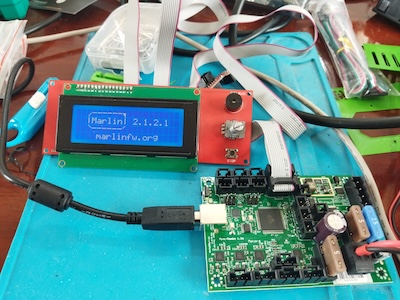
This is a continuation of the effort to use an external mosfet board with the MendelFlex.  I had been able to install Marlin 2.1.2.1 on the Mini Rambo 1.3 while trying a few things that I gathered from my researching on the internet.

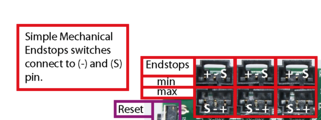
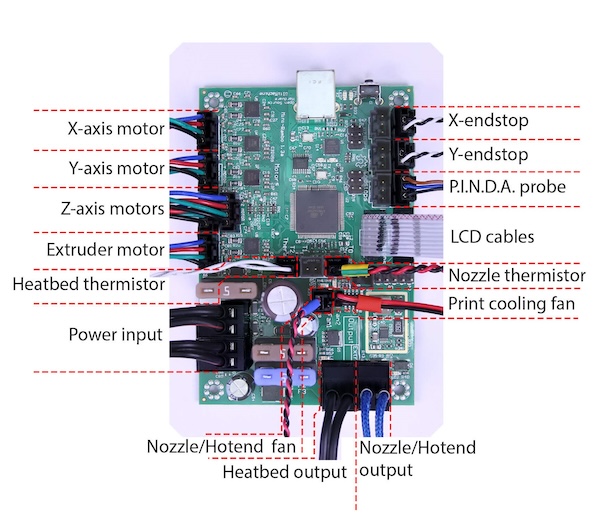
Here is a picture of the connections on the Mini Rambo.  A good source for 3D printer information is reprap.org and this is where I got this picture from.  The link of the page is  reprap.org/wiki/Rambo.

While the picture above show the use of a PINDA probe, the MendelFlex is using a BLTouch probe.  Here is how it should be connected.
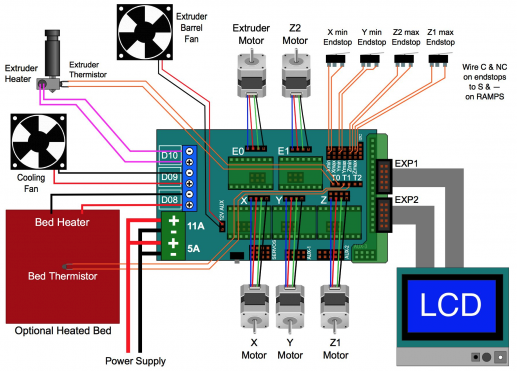
For reference here is a picture of the connections on the Ramps 1.4 controller

Now it’s time to start the swapping out of the controller boards.

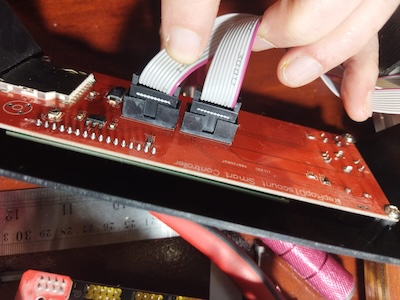
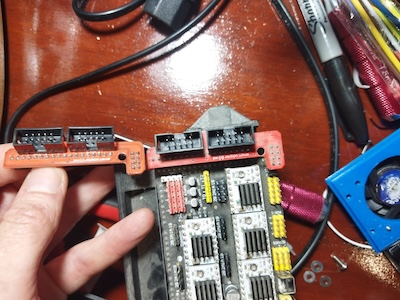
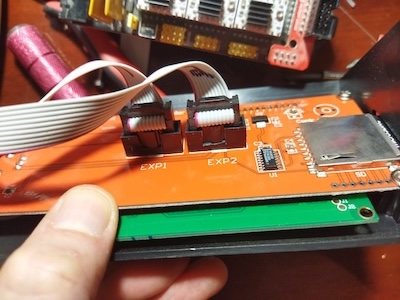
After I finished changing the controller, I installed all the wiring while making sure the connections were correct.  I added power to the Mini Rambo and turned it on.  The LCD did not turn on and show the boot up sequence.  I disconnecting all the connectors while leaving the power and the LCD screen connected.  Still nothing happened.  I removed the Mini Rambo and took it over to the test area.  I had an LCD screen there which I had previously used with success on the Mini Rambo.  I plugged in the LCD screen, turned on the power and the LCD showed the boot up sequence.  I went back to the MendelFlex and I connected the Ramps 1.4 board to the LCD screen.  After I connected the power, I turned the MendelFlex on, and the LCD screen displayed the boot up sequence.  As this point I removed the LCD case from the MendelFlex and looked at the LCD board.  After looking at board, I knew what the problem was.  It was a matter of poor quality control.  The connectors were installed backwards.  It had been such a long time that I forgot about the backwards connectors on the LCD setup on the MendelFlex.

The ribbon cable connectors on the LCD adapter card that the Ramps 1.4 used, were backwards as well.  So the two backwards connector sets worked with each other, but not any correctly installed connectors.  In this picture, the adapter board on the left has the connectors installed correctly, while the adapter board on the right does not.

I went ahead and cut some plastic off both of the connectors of the LCD screen so I could plug in the ribbon cables to the correct pins.

After that I turned on the MendelFlex and the LCD finally showed the boot up sequence.

I went ahead and hooked up the wiring. I did a few movement tests.  I moved the X axis, Y axis, and Z axis successfully.  When I continue I will do further testing.

Reworking the MendelFlex

I started testing the MendelFlex again.  I wish I could say it printed fantastic but it didn’t.  I need to do more tuning on it. The bed adhesion was pretty good though.  Since the printer uses 3.00mm filament instead of 1.75mm filament, I have to have 3.00mm filament on hand as well.  The roll of 3.00mm PLA filament that I used before, is really brittle.  It is old and probably needs to spend some time in the filament dehumidifier.  I had some sample translucent red PLA that I pressed into my tests.  The prints that I made were not good.  I opened up a vacuum sealed roll of ABS filament to try out.  Unfortunately I couldn’t get the heated bed temperature to 110°c for the ABS.  When it got around 75°c, the shrill warning beep on the printer went off.  I had to reset the printer.  Using PLA, the heat bed is set to 60°c and the system can handle it. The extra load on the system for temperatures greater than 75°c is too much for the stock Ramps 1.4 controller board.  There are a number of solutions but I am going to try one of the cheaper ones first.  I am going to install an external MOSFET board.  This will take the electrical load off of the controller board.

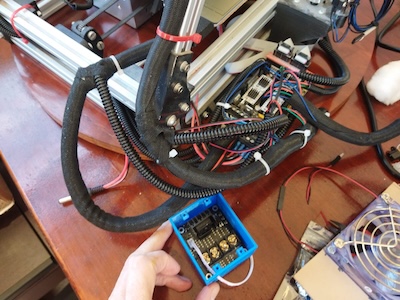
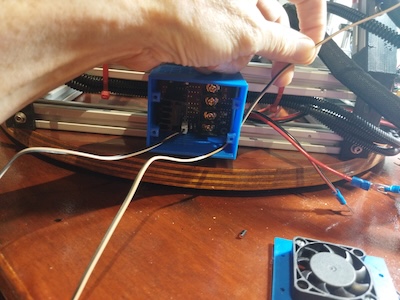
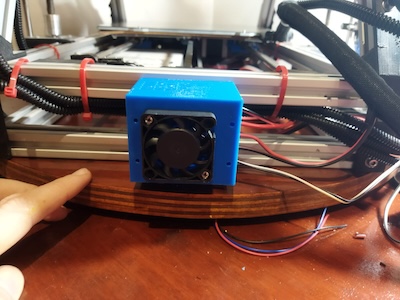
It did a little bit of rewiring on the system.  I mounted the case for the mosfet board on the printer.

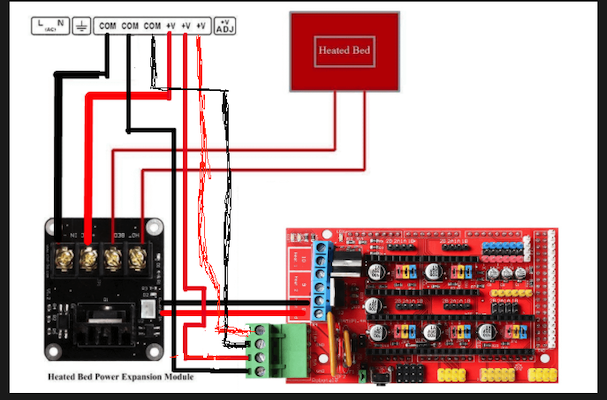
This is what I did for the wiring. I originally had two of the outputs from the PS go to the inputs of the Ramps 1.4 board, one to the 11a side and one to the 5a side. I took the third output from the PS and hooked it up to the external mosfet board on its PS connectors. Correct polarity on all of the outputs. I hooked the heated bed up to the external mosfet board on its heated bed connectors. I hooked up the sensor wires from the external mosfet board to the D8 connector on the Ramps 1.4 board where the heated bed wires were connected.

When the system is powered on there is a red led that lights on the mosfet board. When the Ramps board signals for the heated bed to turn on, a blue led on the mosfet board lights up. The light on the heated bed lights up at the same time showing it is getting power.  The external mosfet got really hot and the the heated bed barely changed temperature.  The alarm sounded on the printer after a short while due to the temperature not rising enough in the set time.  I have a few of those mosfet boards and I tried out another one.  It too didn’t work.  Not sure what’s wrong.

I put a post on the RepRap.org forum thread that was talking about exactly this task which is adding an external mosfet board to the Ramps 1.4 board.

Well on the RepRap.org forum, one senior member said that it looks like my wiring was fine.  There wasn’t any other thing that pointed out what my issue could be.

Maybe I should have shared the PS output that went to the 11A on the Ramps board, with the input on the external mosfet board instead of using that third output.  The output from the PS goes to the external mosfet board and from there to the Ramps board’s 11A inputs.  I tried that alternative wiring and it didn’t work for me either.

Maybe there is something wrong with my Ramps 1.4 board, I don’t know at this point.  I have a Mini Rambo 1.3 controller board that I just installed Marlin 2.1.2.1 on.  It has the settings for MendelFlex.  I can see about swapping the controller boards and testing it out with mosfet board.  Since I am going to probably switch to a 24V setup and this will be good first step in that direction.  My Prusa MK3x has no problem getting the heated bed to 110c using the standard Einsy Rambo 1.2 controller board.  It has a 24V setup.  While I will test the Mini Rambo with the mosfet board, I am not sure I will need to use it when I go to 24V.  But it will be interesting.

The MendelFlex saga continues.