P3Steel Tuning

In a prior post I talked about my 3D Printing Journey.  One thing I talked about was trying to set the E axis steps for the P3Steel because the extruder was having an issue and was clicking while it was feeding the filament.  I have finally got back to tuning the P3Steel.

I thought it would be a good idea to check what were the settings for the Prusa Mk3x.  This should give me a good baseline since I am using the same z stepper motors and the other stepper motors are very similar.  The extruder setup came from parts for an Mk3 using the Bondtech gears.  By using Pronterface and connecting to the Mk3x, I will be able to use the Marlin M503 command to see what the settings are.  Then I will edit the Marlin files for the P3Steel and set the appropriate values to match.

Issuing the M503 command I can see that the default axis steps per unit values for the Mk3x are Y=100, Y=100,  Z=400, and E=280.  First I did the classic extrusion test where you make a mark 120mm from where the filament goes into the extruder.  You then extrude 100mm of filament.  You next check to see how much was extruded by by checking your mark at 120mm with the point where the filament goes into the extruder.  Ideally the distance should now be 20mm.  If you have less than you are under extruding.  If you have more, then you are over extruding.

Well when I first did the test, that 120mm mark disappeared into the extruder and filament kept feeding into it for a while.  So I then marked off 3 segments of 100mm each and ran the test again.  Well, two of those marks disappeared into the extruder.  I was able to see how much was extruded.

I edited the Marlin Configuration.h file to make a change to the E value for the default axis steps per unit.  I compiled the firmware and loaded it to the P3Steel.  Each time I make a change to the firmware, I change the output name of the printer (“P3Steel-1.8”).  That way I not it has changed.  When I ran the test again, the same thing happened.  A lot more than 100mm of filament was pulled in.  On the printer you can check the configuration settings.  The value that I thought I changed was the same.

The settings for the P3Steel were Y=100, Y=100,  Z=400, and E=1900.  The value for the E value wasn’t 280 like I had set it to.  A little bit of head scratching here.  What happened I thought.  Well the magic of EEPROM happened.  Even though the name changed, the changes I made were now part of the default settings and not the current settings.  So in the LCD menu for the printer, I loaded the default settings and my change was there.  I then saved the settings to the EEPROM to make sure they would stay there.  I marked 120mm on the filament and ran the test again by feeding 100mm in to the extruder.  I measured what was left and it was 20mm.  So it was a success.

Quick note here.  In my prior post when I was trying to work on the extruder clicking issue, I had changed the E value to 575.  It seemed to have helped, but I did not run an extrusion test, nor did I check the axis steps value for the E.  More than likely it was still 1900.

In tuning a 3D printer, in addition to the E step calibration, there are a number of other things that should be looked at.  Updating your firmware can help issues with know problems.  So check with the kit supplier (Prusa, etc.) or with the project that produces your firmware (Marlin, Klipper, etc.).

Check the mechanical components of your 3D printer.  Make sure all the fasteners are tight.  The belts should be tight (but not too tight).  The pulleys for your belts shouldn’t move on the motor shafts (check and tighten the set screw).  If you have wheels on your 3D printer, make sure they are properly tightened to prevent wobble and wear.  Regular lubrication is needed on any of your lead screws, guide rods, or other bearings to keep the parts moving without friction.  SuperLube synthetic grease is good for this.

Print shifts to the left or right can be caused by a loose belt or a broken pulley or a free spinning pulley on the X axis.   Print shifts to the front or rear can be caused by the same issues but on the Y axis.  I had an issue once on a print where on the last few layers, the print shifted to the left right a bit.  I was able to use the print ok, but the guide pulley on the X axis broke which caused the shift.  Sticking leads screws or friction on the guide rods can cause layer issues due to the Z not moving smoothly.

The stepper motors of the 3D printer can cause EMI or RFI interference issues.  I seem to be having that with the output on the LCD screen for my P3Steel.  The cables aren’t shielded at all.  One possible solution is to get some snap on ferrite filter cores for the LCD cables.


Soldering Temperatures

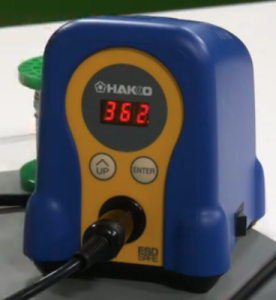
What’s the correct temperature to set your soldering station to?  I am trying to figure out what temperature presets should I use on my Hakko FX-888D.  I can have up to 5 presets.

According to Collin’s Lab Notes, the short answer is for leaded solder to set your iron to 650°F/350°C.  And for lead-free solder to set your iron to 750°F/400°C.  The long answer is that it depends on two different variables, tip size and joint size.  A larger tip is better at transferring heat, so you can use lower temperatures.  A smaller tip transfers less heat so you need more heat.  On the other side of the equation, a larger joint needs more heat so a higher temperature setting is desirable.  A smaller joint heats up faster and it needs less heat, so a lower temperature setting should be used.  Keep in mind that higher temperatures affect the life of your soldering iron tips.  So when in doubt, use a lower temperature and increase the temperature when needed.

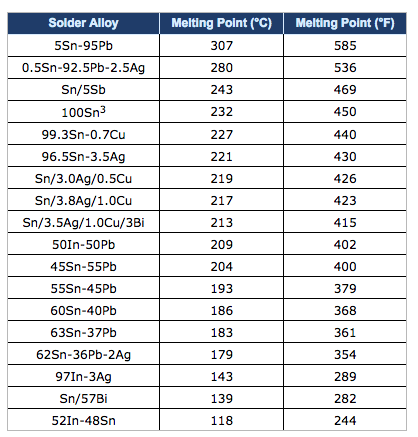
The HAKKO Knowldege Base also provided good information on the different optimal soldering temperatures for leaded solder and lead-free solder.  While I am providing the information for the link, I am going to present the information here from the knowledge base.  But in a nutshell, the optimal temperature setting should be high enough to achieve a soldering connection at 50°C above the melting point of the solder, while also adding in more heat (70°C to 100°C) for a heat reserve for quick thermal recovery of the tip after a connection is made.  This recovery range factors in the performance of the soldering station and type of solder used.  Here is a chart for reference on the melting points of various solders.

As a general rule of thumb, the optimal soldering temperature should be high enough so that when making a solder connection, the solder is approximately 50°C above its melting point.  The set temperature for a soldering station should be an additional 70°C to 100°C higher to provide a heat reserve for the quick thermal recovery of the tip after the solder connection is made.  The performance of the soldering station used and the type of solder used will determine the optimal soldering temperature.

For example, lets look at the melting points of common solders:

  • Tin/Lead (Sn63/Pb37) – 183°C
  • SAC 305 (Sn/Ag3.0/Cu0.5) – 220°C
  • SN100 (Sn) – 232°C

Now let’s add the 50°C we need for making a good soldering connection:

  • Tin/Lead: 183°C + 50°C = 233°C
  • SAC 305: 220°C + 50°C = 270°C
  • SN100: 232°C + 50°C = 282°C

We now need to consider the type of soldering station we are using.  If we are using a Hakko 936 Soldering Station which has very good performance, we should add approximately 100°C as the heat reserve for quick thermal recovery.  The resulting temperature settings are:

  • Tin/Lead: 233°C + 100°C = 333°C
  • SAC 305: 270°C + 100°C = 370°C
  • SN100:  282°C + 100°C = 382°C

As you can see, switching from tin/lead solder to lead-free solder requires a higher optimal temperature setting.  But before you raise your set temperature, you must consider the setting you are currently using, and the performance of the soldering station.  Most Hakko soldering stations are typically set at about 399°C (750°F).  Considering that, the optimal temperature setting does not need to be adjusted when changing from tin/lead solder to lead free solder.

Now let’s look at the optimal temperature settings if we were using a high performace soldering station such as the Hakko FX-951 Soldering Station.  Because of the performance of this soldering station and the thermal recovery performance of the composite tips, we only need to add 70°C as the heat reserve for quick thermal recovery.  The resulting temperature settings are:

  • Tin/Lead: 233°C + 70°C = 303°C
  • SAC 305: 270°C + 70°C = 340°C
  • SN100: 282°C + 70°C = 352°C

Again, considering that most Hakko soldering stations are typically set at about 399°C (750°F), we do not need to raise the set temperature.  In fact, we can use a lower set temperature which will help extend the service life of the soldering iron tip and reduces the risk of damage to the PCB and components.

That wraps up this post.

Hakko FX-888D Setup

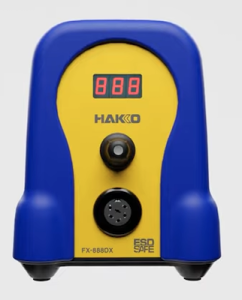
Recently i noticed that Hakko has released a new version of their FX-888D soldering station.  The new model is the FX-888DX.  The main difference I can see is the addition of single adjustment knob which replaces the two adjustments buttons that the FX-888D had.

The new model can also use an optional 95w iron for more demanding soldering work.
I have the FX-888D and it is good soldering station.  It is 65w and has a temperature range of 120°F to 899°F (50°C to 480°C).  The time to reach 660°F (349°C) is 26 seconds.  A good soldering station.

I will go through the setup of the FX-888D in order to document the process.  There are a four parameters that you can change in the setup .  You can choose either Celsius or Fahrenheit as the display temperature.  You can set a base temperature so that an alarm will sound if the station doesn’t go pass this value.  You can choose between normal mode or preset mode.  Preset will allow you to set a number of different temperature presets.  And the last thing is setting a password.  This probably could be useful to people.

In order to get into the parameter settings, press and hold the UP button while turning on the FX-888D.  Let the button go when the display lights up.  Next 01 will flash to indicate that you at Preset 01.  Press the Enter button to allow you to set the display temperature scale to either Celsius (C) or Fahrenheit (F).   Pressing the UP button will cycle through C and F.  By pressing the Enter button, you will set your chosen temperature scale.  The 01 will be flashing again.  Press the UP button to go to the next Parameter which is 03.

Parameter 03 is to set a base temperature so that an alarm will sound if the station doesn’t go pass this base value after a certain time.  We can press the Enter button to go into this mode to set the desired value.  Using the UP button and the Enter button will allow us cycle through the digits to set the desired value. Pressing the UP button at the flashing parameter number takes us to the next parameter.

Parameter 11 is next and it allows us to choose between normal mode or preset mode.  Normal mode is 0 and preset is 1.  Normal mode just has one preset temperature wile Preset mode will allow you to set a number of different temperature presets, up to 5.  We don’t each preset temperature value here, we just set the number of presets.

Parameter 14 is next and it is about setting a password.  This probably could be useful, but I am not going to use it and not going to describe it here.

When we are done changing the parameters that we want, we press and hold the Enter button for a second.  A Y will flash on the display.  If we want to save the values, we will press enter again.  If we hadn’t wanted to save the values, when the Y was flashing, we would have pressed the UP button to cycle through to a flashing N.  Then we would have pressed the Enter button to not save the changes.

How to change your set or preset temperatures.  For example if the default set value was 750 and you wanted to set it to 660.  First press and hold the Enter button.  The hundreds digit on the display will begin to flash.  You will use to UP button to cycle through to the digit value you want.   In our example the 7 is flashing and I would press the UP button, scrolling through until the 6 is displaying.  Press the Enter button to move over to the tens digit.  Press the UP button to scroll through to the desired value.  Press the Enter button to move over to the ones digit.  Make a change to this value if needed by using the UP button.  Then press the Enter button to finish.

This will work for if you have a number of presets.  For the presets you will use the UP button to select the various presets, P1, P2, etc. up to P5 if you have 5.  Press the Enter button to set the iron temperature to the preset that you have chosen.  When it heats up to its value, you can do the change as described prior.

From time to time you probably want to dial in or adjust the set temperature on your FX-888D, so that it will be more accurate.  You will need a way to measure the temperature of your tip.  There are tip temperature measurement tools.  Hakko has the SG-100B.  With the iron on and it is at its set temperature, measure the tip temperature with the tool.  Once you do that, you will press and hold the UP button on the FX-888D to get into adjustment mode.  Then you set the value to the temperature that you measured with the tip temperature measurement tool.  The UP button will cycle through the digits.  The Enter button will take you to the next digit and will also exit when you are at the 1s digit.

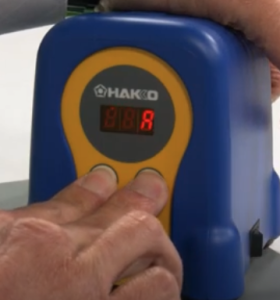
If for some reason, you made mistakes when you made your changes, you might want to do a factory reset. Here is how to do a factory reset on your FX-888D.  When the power is off, press and hold both the UP and Enter buttons.  Turn on the power.  When the power comes on your will get a flashing A which means Asia.

Press the UP button one time to get a flashing U which means US.  Press the Enter button to choose this selection.  The FX-888D has been reset to its factory settings.

Here are the video links where I got my information from.  There is no guarantee that any video that I link to will be available later, so I tried my best to document the information.

FX-888D Setting and Adjustments document.

Here is a very short video by Hakko on the parameter settings on your Hakko FX-888D.

Here is another video where we are shown how to set the different parameters.

Here is the video by Hakko where I got the information on changing vs adjusting the soldering temperature.

Here is a video by Hakko on setting the Preset Temperatures.

Here is a short video by Hakko on setting the Temperature on your FX-888D.

Here is a short video by Hakko on using the Adjust mode.

How To Set and Use the Password Lockout Feature on your FX-888D.